Repair Windows.
In the right order.
Windows 10 and 11 ship with a complete repair toolkit: DISM, SFC and CHKDSK. It costs nothing, but the order matters and nobody explains that part. UCE runs the commands in that order and then sums up the results in plain language.
- ✓ No subscription
- ✓ Free diagnosis
- ✓ Windows 10 & 11
- DISM first, then SFC, then CHKDSK
- Risky steps only once you allow them
- No telemetry, no tracking
- Pay once, no subscription
- 14-day statutory right of withdrawal
Why most repair attempts change nothing
Windows keeps a reference copy of every system file, the component store. SFC replaces damaged files from exactly that copy. If the copy itself is damaged, SFC restores from a broken source.
That is why DISM comes first: it checks and repairs the reference. Then SFC replaces the system files, and finally CHKDSK checks the file system. UCE keeps to that order and reads the results for you.
SFC before DISM and the best you get is a message saying some files could not be repaired. Often you get nothing at all. This is the single most common reason people try a “repair” and conclude it did nothing.DISM, SFC, CHKDSK: three commands, one order
This is not a marketing detail. It is the reason so many repair attempts change nothing at all.
DISM repairs the component store
Windows keeps a reference copy of every system file. If that copy is damaged, any further repair is pointless, because you would be restoring from a broken source. That is why this step comes first.
SFC replaces damaged system files
Only now does SFC compare every protected file against that reference and swap out the damaged ones. Usually it finds a handful out of several thousand: unspectacular, but those few are what cause the trouble.
CHKDSK checks the file system
Finally CHKDSK checks the file system for logical errors, while Windows keeps running and without a restart. Windows may fix minor errors along the way; anything else is only reported. UCE only runs a repair that needs a restart once you explicitly allow it.
What is wrong with your PC?
Click your problem. This is an honest answer about what helps and what does not.
Windows Update keeps failing
Often the cause is a damaged component store, which Windows Update needs in order to install anything. So run DISM first. If that does not help, UCE Pro resets the Windows Update components and WMI. Some update errors are fixed by neither, for example when disk space runs out or a company policy blocks updates.
Crashes and blue screens
DISM and SFC help when damaged system files are the cause. If the errors come back after a successful repair, the hardware is often to blame: check the memory with mdsched first, then the health of the drive.
SFC says it could not repair some files
“Windows Resource Protection found corrupt files but was unable to fix some of them” usually means the reference copy in the component store is damaged as well. Run DISM first, then SFC again. The affected files are listed in CBS.log. UCE does not list them individually.
Windows no longer starts
Then UCE cannot start either, because it only runs inside a running Windows. The way forward is the Windows Recovery Environment (WinRE): Startup Repair, uninstalling updates, System Restore. As long as Windows still starts, UCE Pro can switch a disabled WinRE back on so it is there when you need it.
Thinking about reinstalling
Before a clean install there are several steps that keep your files and usually your programs too: DISM and SFC, Startup Repair, System Restore, an in-place upgrade. UCE handles only the first of these. Start there and work your way down.
The PC feels slow
Honestly: damaged system files are rarely the reason, and cleaning the registry brings no measurable speed on a modern system. More often, programs that launch at startup slow things down. UCE shows them for free; managing them is part of Pro. We make no promise about speed.
What UCE does
Everything listed here is in the program. Diagnosis is free; the repairs and tools come with Pro. You can try one complete repair run for free.
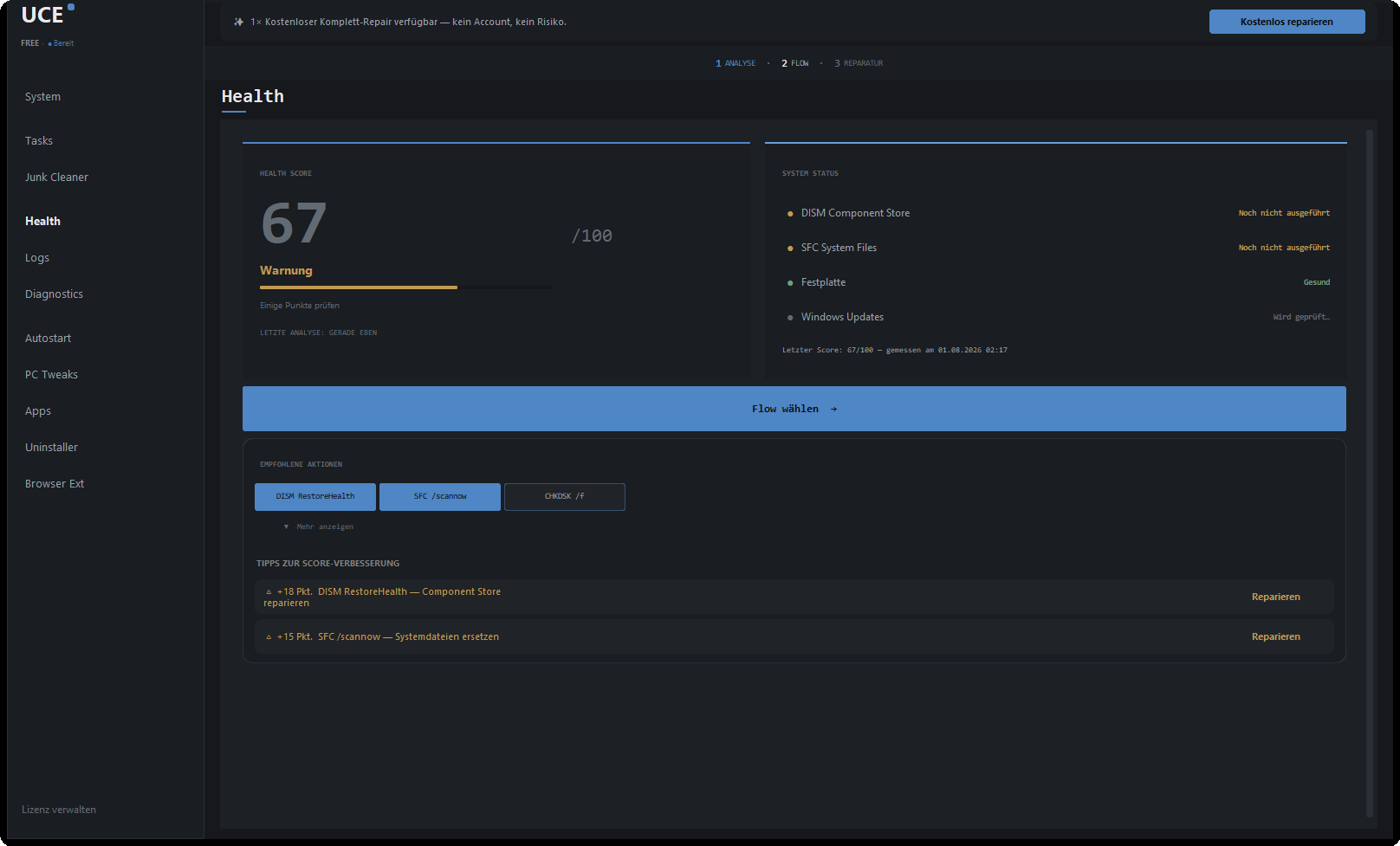
Health score from 0 to 100
UCE rates the component store, system files, Windows Update, free disk space, temporary files and free memory and sums that up in one number. You see how many points each step is worth before anything is changed.
Repairs with a parsed log
DISM, SFC and CHKDSK run in the right order. UCE evaluates the DISM and SFC logs and sums up the result in plain language.
Boot and recovery repair (BCD, WinRE)
Rewrites the boot files with bcdboot and switches a disabled recovery environment back on with reagentc. Only works while Windows still starts.
Reset Windows Update and WMI
For when updates keep hanging even though the component store is intact: the update components and the WMI repository are reset.
Startup manager and uninstaller with leftover detection
See what launches at startup and switch it off. Uninstall programs along with the folders and registry entries they leave behind.
Restore point before risky steps
Before touching the component store or the boot configuration, UCE creates a Windows restore point, provided System Restore is switched on. Windows allows at most one every 24 hours.
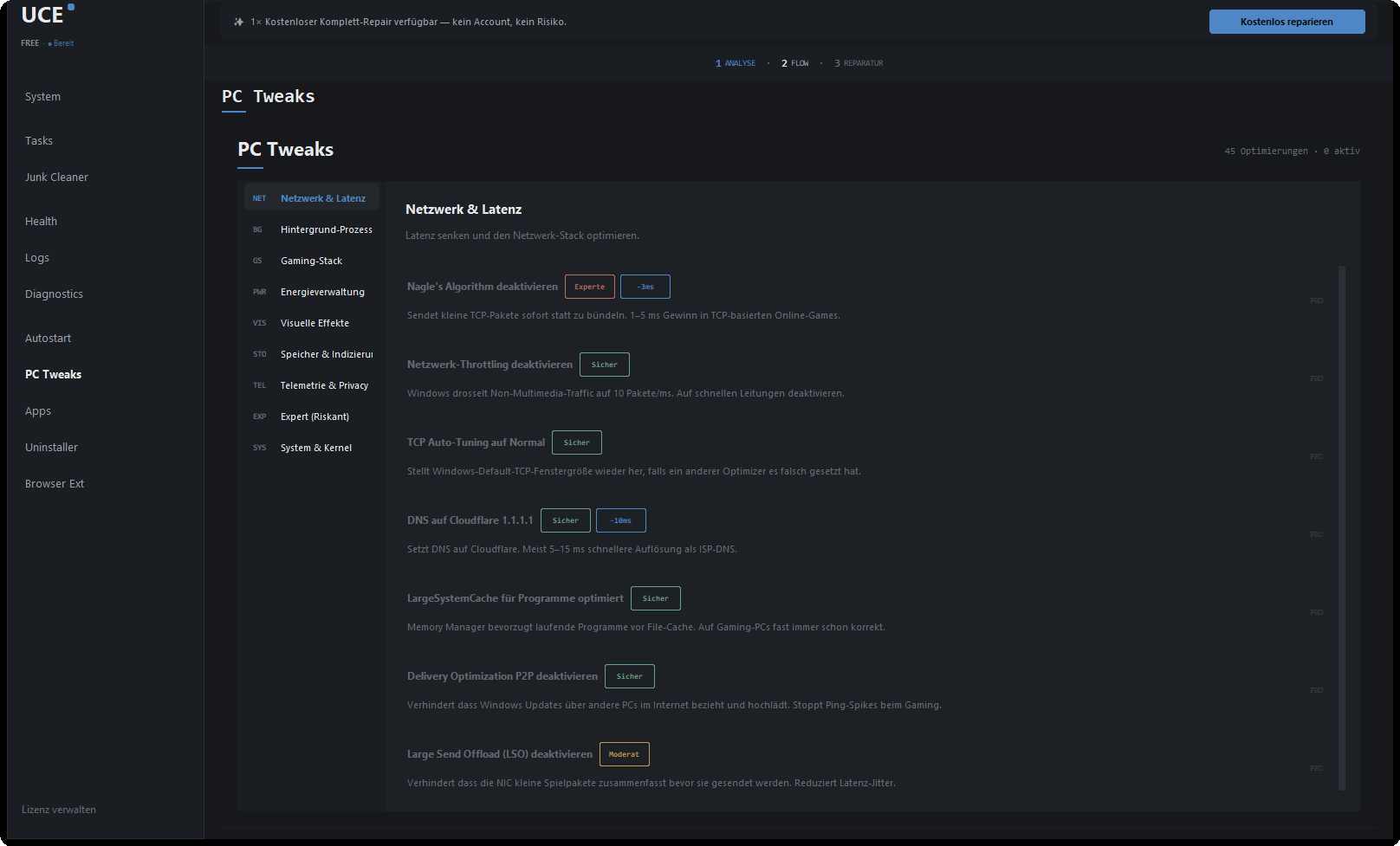
45 system settings with risk labels
No program should let you tinker with Windows blindfolded. So every setting states what it does, how risky it is and what it actually gains you, even when the honest answer is “a few milliseconds”.
By hand or with UCE?
The commands ship with Windows. If you know them well, you do not need UCE. This is the honest difference.
| Feature | UCE Pro | UCE free | Commands by hand |
|---|---|---|---|
| Order DISM → SFC → CHKDSK | ✓ | check only | If you know |
| Repair the component store | ✓ | — | ✓ |
| Replace system files | ✓ | read-only mode | ✓ |
| Complete repair run | ✓ | once, to try it | By hand |
| Health score 0–100 | ✓ | ✓ | — |
| Plain-language result instead of raw output | ✓ | ✓ | Raw output |
| Restore point before risky steps | ✓ | — | By hand |
| Repair boot and WinRE | ✓ | — | bcdboot, reagentc |
| Reset Windows Update and WMI | ✓ | — | Many single commands |
| Price | €29 once | €0 | €0 |
What UCE does not do
The PC optimiser market has spent twenty years promising things that are not technically possible. Here is what we leave out, and why.
| What UCE does not do | Why |
|---|---|
| ✕No invented error counts | When a program shows you 4,271 errors and then asks for money, it has counted 4,271 registry entries that are perfectly fine. |
| ✕No registry “optimisation” | Cleaning the registry produces no measurable speed gain on a modern system. It can, however, break installed software. |
| ✕No background service | UCE runs when you start it and is gone afterwards. It only starts on its own if you switch on autostart or scheduled maintenance yourself. A cleanup tool that sits in memory permanently contradicts its own purpose. |
| ✕No cloud, no account | There is nothing to sign up for. Scan results and diagnostic reports stay on the machine, except as log lines in a crash report you agree to send. What does leave: an update check, the licence check once you enter a key, and a crash report if you agree to send one. No telemetry, no tracking. |
| ✕No subscription | €29 once. No renewal, no price rise in year two, no notice period. |
What UCE sends and what it does not
Diagnosis and repair run on your PC. UCE only connects to our servers for three reasons, and one of them only with your consent.
Update check
UCE fetches a version file from releases.uce-software.com. The only thing sent with the request is the program version.
Licence check
Only with a key: the key, a hashed device ID, computer name, operating system and version go to api.uce-software.com.
Crash report
Only if you explicitly agree after an error. It contains the error trace, the last lines of the UCE log, the Windows and program version and a random installation ID. Licence keys, email addresses and user names in file paths are removed first.
No telemetry
No tracking, no usage profiles. Diagnostic results and file lists stay on your machine.
Read it all
Which data, what for and for how long: it is all in the privacy policy (German).
Privacy policy →System requirements
| Operating system | Windows 11 and Windows 10, 64-bit. Fully supported from Windows 10 version 2004 (build 19041). Older builds run with a notice, because some DISM parameters may be missing. |
|---|---|
| Rights | Administrator rights. Windows asks for them when the program starts. |
| Internet | Not needed for the diagnosis. Used for the update check, licence activation and, only with your consent, the crash report. DISM /RestoreHealth fetches replacement files through Windows Update by default. |
| Current version | 1.3.5, released 24 September 2026 |
| Download | Installer, about 26 MB |
| Licence | Diagnosis free and unlimited. Pro for up to three machines at a time. |
Free diagnosis, Pro €29 once
Diagnosis stays free forever. So you find out what is actually wrong with your machine before deciding anything.
- ✓ Full diagnosis and health score
- ✓ DISM check, SFC in read-only mode
- ✓ Disk verification
- ✓ Clear temporary files, reset networking
- ✓ Once: one complete repair run to try it
- — Run repairs after that
- — Startup manager, uninstaller, tweaks
- ✓ Everything in the free version
- ✓ Run repairs whenever needed
- ✓ Startup manager and uninstaller with leftover detection
- ✓ 45 system settings across nine categories
- ✓ Boot and recovery repair (BCD, WinRE)
- ✓ Reset Windows Update and WMI
- ✓ Securely overwrite free disk space
Payment via Stripe. Your licence key arrives by email.
14-day right
of withdrawal
Your statutory right as a consumer, no reason required. Details and exceptions are set out in the terms.
Terms (German) →Windows repair FAQ
UCE runs Microsoft's own repair tools, not homemade edits to your system. Before risky steps, such as repairing the component store or the boot configuration, UCE creates a restore point, provided System Restore is switched on. Windows allows at most one every 24 hours. Anything carrying real risk, a disk repair that requires a reboot for instance, is marked as such and only happens once you explicitly allow it.
No. DISM and SFC work only on Windows system files; they do not touch your own files and programs. The CHKDSK check runs without a restart; Windows may fix minor file system errors along the way. A disk repair that needs a restart only runs once you allow it.
That depends on the machine and the damage. DISM /RestoreHealth usually needs 5 to 30 minutes, longer on old hard drives, and often sits at one percentage for minutes. SFC takes two to twenty minutes. The CHKDSK check is usually done within a few minutes.
You do not have to. If you know the order they need to run in, how to read the logs and what the output means, you will do fine without us, and the diagnosis stays free either way. What you are paying for is the part after that: running them, watching them, reporting in plain language, and the tools around it.
Usually the reference copy in the component store is damaged too. Run DISM /RestoreHealth first, then SFC again. If DISM cannot find a source, a Windows ISO of the same version and language can serve as one. The affected files are listed in CBS.log.
No. UCE only runs inside a running Windows. If Windows no longer starts, the way forward is the Windows Recovery Environment. As long as Windows still starts, UCE Pro can rewrite the boot files and switch a disabled recovery environment back on.
We do not promise that. UCE repairs Windows when system files or the component store are damaged. If the machine is merely slow, that is rarely the cause. With Pro you can switch off programs that launch at startup, and each of the 45 system settings states what it actually gains you.
The free version checks: full diagnosis with health score, DISM check, SFC in read-only mode, disk verification, plus clearing temporary files and resetting networking. You can try one complete repair run for free. Pro runs the repairs whenever you need them and adds the tools: startup manager and uninstaller, 45 system settings, boot and WinRE repair, resetting Windows Update and WMI. €29 once for up to three machines.
The diagnosis does. UCE itself connects to our servers for three reasons: checking for a new version, the licence check once you have entered a key, and sending a crash report, but only if you agree to it. With no connection at all, the free version still works without restriction. One exception lies with Windows itself: DISM /RestoreHealth fetches replacement files through Windows Update by default. Offline, that only works with a Windows ISO as the source.
Your scan and diagnostic results and file lists stay on your machine. During the licence check, the key, a device identifier as a one-way hash, the computer name, the operating system and the program version are sent to our server, so we can count how many devices a key is running on. Without a key this does not happen. A crash report only leaves with your consent. Among other things it contains the last lines of the UCE log, which include diagnostic results, and a random installation ID. Licence keys, email addresses and user names in file paths are removed first.
Details in the privacy policy (German) →Three at a time. When you replace a machine, you release its slot inside the program and activate the new one.
Windows 10 and Windows 11, 64-bit. Fully supported from Windows 10 version 2004. The repair functions need administrator rights; Windows asks for those when the program starts.
Look at the diagnosis first.
It costs nothing and takes a few minutes. Afterwards you will know whether your machine even has a problem that can be repaired, and you can still decide it is not worth €29 to you.
Version 1.3.5 · installer, about 26 MB